Evaluating Peony Procreate Stamp Brushes for Digital Line Art
Digital illustration has evolved significantly with the introduction of specialized tools that streamline the creative workflow. Among these tools, stamp brushes have become increasingly popular for artists seeking efficiency without sacrificing aesthetic quality. The Peony Procreate Stamp Brushes Line Art set represents a specific category of digital assets designed to assist illustrators in creating botanical compositions quickly. This article evaluates the features, utility, and practical considerations of this brush set to help digital artists determine if it aligns with their creative goals and technical setup.
Understanding the Toolset
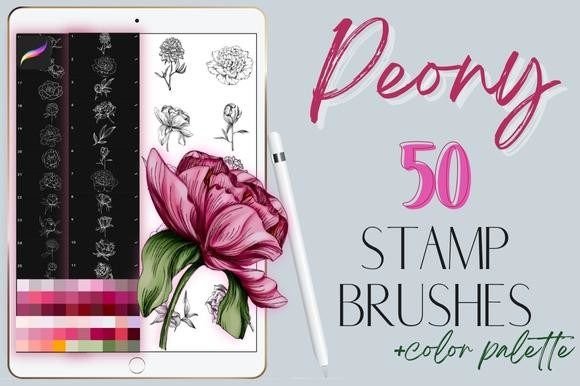
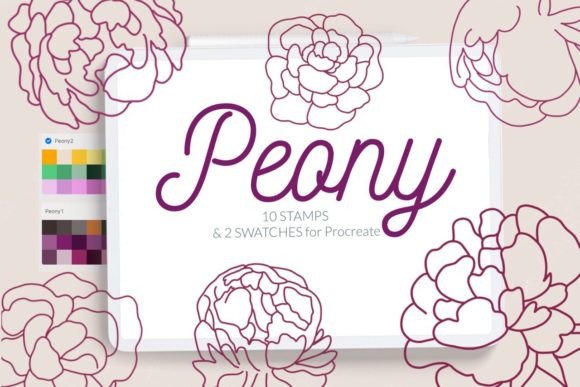
The core of this product is a collection of digital stamps tailored for the Procreate application on iPad. Specifically, the package includes ten distinct stamp brushes featuring peony motifs. These are not standard painting brushes that rely on pressure sensitivity for stroke variation; rather, they are pre-designed shapes that can be stamped onto the canvas. This distinction is crucial for users to understand, as it shifts the workflow from drawing individual petals to composing arrangements using existing forms.
In addition to the ten stamp brushes, the package includes two color swatches curated to match peony tones. These swatches provide immediate access to palettes that complement the line art, reducing the time spent on color selection and ensuring visual harmony within the artwork. The entire package is delivered as a single .brushset file, which simplifies the installation process for compatible devices.
Workflow Efficiency and Creative Benefits
For many digital artists, time management is a critical factor in project completion. The primary benefit of using Peony stamp brushes botanical for Procreate lies in speed. Creating realistic or stylized peonies from scratch requires a significant understanding of botanical structure, layering, and perspective. By utilizing stamp brushes, artists can bypass the initial sketching phase for complex flower heads, allowing them to focus on composition, lighting, and background elements.
This toolset is particularly advantageous for commercial illustrators who need to produce high volumes of work, such as greeting card designers, pattern makers, or social media content creators. The consistency provided by stamp brushes ensures that each flower maintains a uniform style, which is essential for branding or cohesive series work. Furthermore, the inclusion of line art styles means these stamps can serve as a foundational layer for further detailing, coloring, or texturing, offering flexibility in the final output.
Technical Compatibility and Limitations
Before acquiring any digital asset, verifying technical compatibility is essential. This brush set is designed exclusively for the Procreate app on iPad. A critical consideration for potential users is the software version requirement. The .brushset format is not supported in Procreate version 4.0 or earlier. Users operating on older versions of the app will find the primary installation method ineffective.
However, the provider acknowledges this limitation and offers an alternative installation method for legacy systems. If you are using an older iPad or an outdated version of Procreate, you can still utilize the brushes by importing individual .brush files. This workaround involves downloading the folder containing the individual brush files, selecting them, and using the "Share" function to open them in Procreate. While functional, this process is more cumbersome than the one-click import available to users with updated software.
Additionally, artists should consider the inherent tradeoffs of stamp brushes. Because the shapes are pre-defined, there is a risk of repetitive patterns if the same stamps are used without modification. To maintain organic-looking artwork, users must rotate, resize, and opacity-adjust each stamp. Those seeking complete control over every petal’s curvature may find stamp brushes restrictive compared to custom-shaped alpha locks or hand-drawn techniques.
Installation Guide for Procreate
Proper installation ensures that the brushes function correctly within your library. The method you choose depends on your device and software version. Below are the standardized procedures for integrating these tools into your workflow.
Method 1: Importing the Brushset (Recommended)
For users with Procreate version 5.0 or later, the .brushset file offers the most efficient installation path.
- Download the
.brushsetfile to your iPad’s Files app. - Tap on the file within the Files app.
- Select "Open in Procreate" from the share sheet.
- Procreate will automatically launch and import the entire collection into your brush library.
Method 2: Individual Brush Import (For Older Versions)
If you are using Procreate version 4.0 or earlier, or if the brushset option is unavailable, follow these steps to install individual .brush files:
- Download the folder containing the
.brushfiles to your iPad. - Open the folder and locate the specific
.brushfiles. - Tap and hold the file with your finger or Apple Pencil to bring up the context menu.
- Select "Share" from the options.
- If "Open in Procreate" is not immediately visible, scroll through the app list and select "More" to find it.
- Tap "Open in Procreate." The brush will be added to your currently selected brush group.
- Repeat this process for each of the ten brushes.
Alternatively, you can import brushes directly within the app interface:
- Open Procreate and create a new collection or select an existing one.
- Tap the "+" icon to add a new brush and select "Import."
- Navigate to the folder where the downloaded brushes are stored.
- Select the desired
.brushfile to add it to your library.
Decision-Making Insights
When evaluating whether Peony Procreate Stamp Brushes Line Art is the right choice for your needs, consider your current skill level and project requirements. If you are a beginner struggling with botanical anatomy, these stamps can serve as an educational tool, allowing you to study the structure of peonies while creating finished pieces. For advanced artists, they act as a time-saving asset for background elements or repetitive patterns.
However, if your artistic style relies heavily on unique, hand-drawn imperfections or highly specific botanical accuracy that differs from the provided stamps, you may find limited utility in this set. In such cases, investing in custom brush creation tutorials or general-purpose texture brushes might offer greater long-term value.
Ultimately, the value of this toolset lies in its ability to bridge the gap between complexity and efficiency. By providing ten varied peony stamps and complementary color swatches, it offers a focused solution for floral illustrators. Ensuring your software is up to date will maximize the ease of use, allowing you to integrate these assets seamlessly into your digital toolkit. As with any digital resource, the best approach is to test how these stamps integrate with your existing workflow, adjusting opacity and rotation to create natural, dynamic compositions.